01
Your knowledge, connected.
Connect your knowledge through normal chat and HYPER RAG, using your own AI’s permissions and context.
Live answers · Your AI

✦ VIVI, the AI agent your VORA AI uses to get things done.
Talk to your own AI in VORA and ask VIVI for help with PC tasks. This desktop AI agent delivers your AI’s answers and helps with the work you permit.
VORA account and first-time authorization required
Desktop only · Not available on mobile
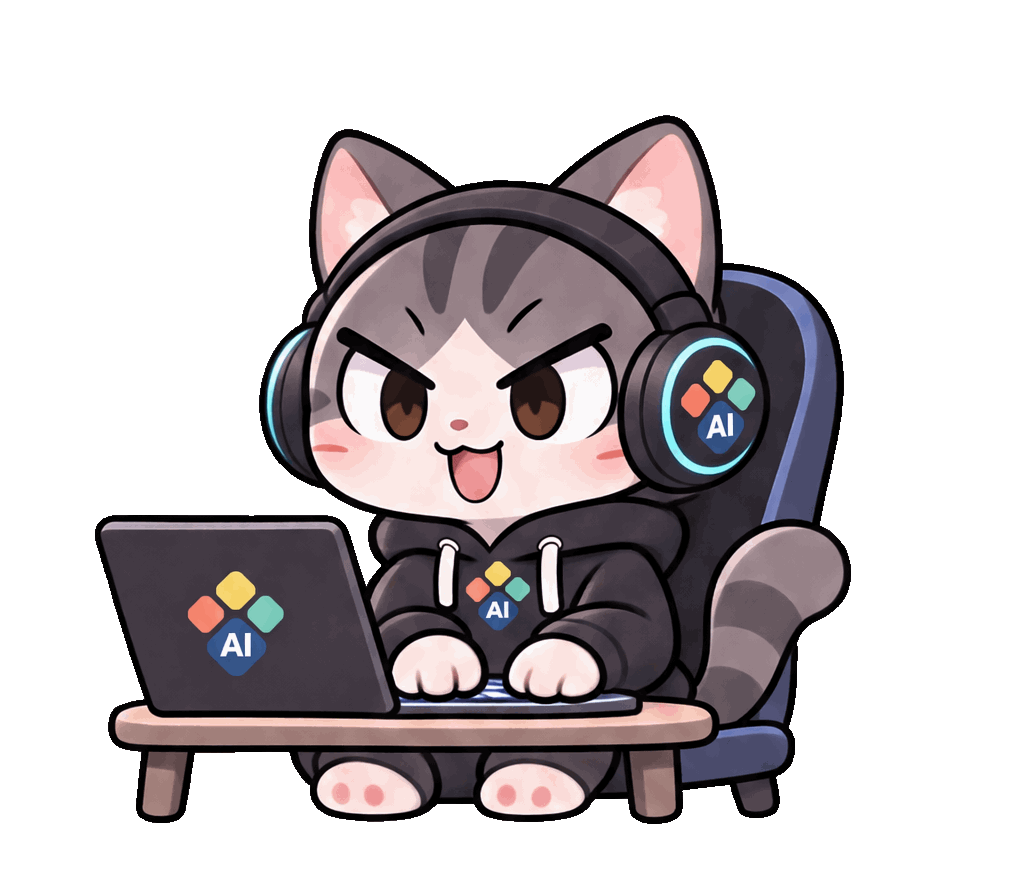 TAP TAP TAP
01 / MEET YOUR DESKTOP BUDDY
The VORA features you need, with a little more personality.
Connect your knowledge through normal chat and HYPER RAG, using your own AI’s permissions and context.
Live answers · Your AITurn on computer use and choose the apps and task. Review important actions, and stop whenever you need to.
CUA · Separate toggle · ApprovalAttach files to your question, then turn the whole chat into a PDF and save it in VORA’s AI Generated Files.
Drag & drop · PDF · DOCXGet the full answer on screen and a concise, spoken summary. Turn voice input and summary playback on when useful.
Full text + Spoken summaryGet reminders from your permitted calendar and notifications from VORA. Quiet hours keep your companion considerate.
Calendar · VORA notificationsOutfits and hand-drawn full-body motion. Add or replace external character packs that follow the open format.
External packs · Seasonal motionCUA × YOUR VIVI
Use CUA for computer tasks and character packs for VIVI’s look. Choose each feature separately.
Turn on computer use, choose the permitted apps and describe the task. You can stop at any time.

Choose an app and say what you need. Review screen and input permissions first.

Review and approve important actions, including their target. Stop whenever you need to.

Check progress and results, then ask for the next step.
Illustrative examples. Open a title to see three panels. Results depend on permissions, apps and connection status.

Select a Finder or File Explorer window and describe the file or folder listing you need.
VIVI checks the file names and modification dates visible in your selected window.

Your AI explains the location and what it found. Ambiguous files need clarification first.
Choose an app window and ask about its contents or progress.
VIVI checks screen permissions and reads the selected window without extending the task to other windows.

Your AI explains the actual screen. Sending a captured image is a separate remote example below.
Select a browser window and request a news summary or a comparison of complete drones.

VIVI examines the permitted page while your AI compares the sources and conditions.
Results include what was accessible and when it was checked. Login and paywall restrictions are not bypassed.
Select installed Word or Excel and provide a topic or the actual numbers and chart type.
VIVI works in the permitted window, checking important edits and saves with you.
Inspect the document or chart yourself. If installation or sign-in is needed, VIVI explains why it cannot proceed.
In Settings on the PC where VIVI is installed, add, edit or delete a title, service website, username and password. Use titles such as Work or Personal for accounts on the same site.
Choose an account permitted for local use. VIVI first checks for a safe connection to your default browser and uses its own browser only when needed. Review and approve sign-in actions.
Check the result yourself. If extra authentication or a CAPTCHA is needed, VIVI waits for you rather than bypassing it.
“Your PC” means the computer where VIVI is installed, not the device viewing this webpage; login details are stored separately on each installed PC and do not automatically sync with servers or other PCs.
Remote access is being prepared. You must explicitly enable remote requests in VIVI on the PC, using the same account. A friend’s PC cannot be connected.
Type @vivi and your request in VORA normal chat. Once accepted, a notification appears and the input clears.
Connect to a PC on your own account where remote requests are enabled. Tasks stay within permitted folders and screen/input permissions. Stop at any time.

Check the result notice and VORA VIVI task history. Requested existing files, new documents and captures are all saved to the requesting account’s AI Generated Files, subject to VORA’s storage limits. Offline PCs and unclear requests receive an explanation too.
Illustrative examples. Open a title to see three panels. Results depend on permissions, apps and connection status.
Or ask for the latest sales PDF from a folder you have permitted on the PC.
VIVI checks names and dates within that scope. It cannot access a friend’s PC or unapproved folders.

Only requested files are saved unchanged to your account’s AI Generated Files, subject to existing storage limits. Missing or ambiguous files are reported rather than guessed.
For every display, explicitly ask for each monitor separately.
VIVI checks remote access and screen-recording permission. The default is the main screen; supported monitors can be captured separately.
Images appear in AI Generated Files and the result chat. Denied permissions, unsupported screens and partial success are reported.
Name a site, or ask for ten low-priced complete drones on Amazon, excluding spare parts.
VIVI inspects accessible pages on your PC. It does not authorize sign-ups or purchases on your behalf.
Open the result notification to review findings. Prices reflect the time checked; a global lowest price is not guaranteed.
Paste the actual Excel data, or provide a Word topic and constraints such as one page.
VIVI checks the installed app and uses a new task document without overwriting existing personal files.
Review them in the result notice and history. Missing apps, sign-in, licensing or an offline PC produce a clear status and reason.
Name the account saved in VIVI on the PC that will run the task and describe the task. Ambiguous choices between multiple accounts are clarified first.
Both remote access to the PC and remote use of the account must be enabled. Your PC fills the password only on the registered service and sign-in sites.
See the result or a reason such as additional authentication or a connection failure. Request another PC action with @vivi, or discuss the result with your AI.
“Your PC” means the computer where VIVI is installed, not the device viewing this webpage; login details are stored separately on each installed PC and do not automatically sync with servers or other PCs.
For another PC action, send a new @vivi request. For a summary or questions about a received file, talk to your AI in normal chat. Revisit results in notifications and the VORA VIVI task conversation.
YOUR CHARACTER, YOUR WAY
Import a character pack or create your own. New bubbles, paper planes, toy fish, box peeks and yo-yo play connect through full-body artwork. Choose character customization separately from CUA.
02 / A LITTLE HELLO
Just VIVI until you need more. Open an input bubble or a roomy window for longer answers.
Try clicking VIVI↘
03 / HELLO, VORA
Choose VIVI for your operating system.
Create a VORA account and authorize the connection.
Stay signed in while permissions and context refresh securely in the background.
04 / YOUR NEW DESKMATE
VORA VIVI is free. Download the official release for your operating system, then sign up for VORA and authorize your first connection.
Desktop only · Not available on mobile
Apple Silicon · Intel
Version 0.1.6
824cbd6f3a035993497c600985c7bbe3051c181e6ae4b1d7c42c5f56c3996b8a64-bit
Version 0.1.6
b80fa471a415497f9127dc91266f80465d77c71f2aa81401bb074e4dd7150df3AppImage · Debian · x86_64
Version 0.1.6
84d4d04863d35e3959ce3a7a12da4b873b6441bd6c4a198bc37efb96ca5199b65c474988989e60cf37ec6855048471ae3fc22e9f643da0ec34e56f1567097e60A VORA account and first authorization are required. Keep sign-in enabled to avoid signing in on every launch. Computer use and microphone permissions are requested when you choose those features.
Join or visit VORA05 / GOOD QUESTIONS
Tool links stay in answer cards. Click the card you want to open it in your browser; new windows do not open automatically.
VORA VIVI is a free desktop app. AI capabilities and file limits follow your VORA account permissions and service policies.
Registration and first-time authorization are required. Keep sign-in enabled to reconnect automatically while permissions and context refresh internally. Signing out or revoking access requires authorization again.
Open-format character packs can replace appearance, motion, and outfits while keeping your own AI account connected.
Computer use is off by default. You turn it on and define a task scope. Important actions require approval, and you can stop at any time.